2023年8月10日木曜日

Caho's Cute Shopping List Premium Features

 Premium features include the following two items


  1. All illustrations will be available.
  2. All ads in the app will be hidden


All wallpapers will be selectable.
All wallpapers will be available for random display as well.


Ads on the shopping list screen, settings screen, etc.
All ads in the app will be removed.


If you have any comments or requests, please send them from the settings screen of the application.


We will review and correct them as needed.

2021年2月2日火曜日

Features of Caho's Cute Shopping List Ver. 1.1.0


Categories can now be registered without a budget.


If you have no budget, you can create a list without showing the amount.


Three new theme colors have been added.


Please choose your favorite color and use it.


Wallpaper can now be displayed randomly.


Press the Random View button to set it.
Each time you switch screens, the wallpaper will change randomly.

Thank you for your continued support of Caho's Shopping List.


2020年10月29日木曜日

How to use Caho's cute shopping list


You can add shopping categories and budgets using the + buttons in the bottom right corner.


Enter the category name and budget to register.
You can cancel your entry by pressing the X button at the top left.


You can delete or edit a category from the menu button in the category list.


You can also press and hold the list to edit it.


You can reorder the list by pressing the pencil symbol button at the top left of the screen.


You can rearrange the list by swiping while holding down the list.
You can also sort the list by priority.


After checking the box, the delete button in the upper right hand corner allows you to delete the
Multiple selections and deletions are possible.


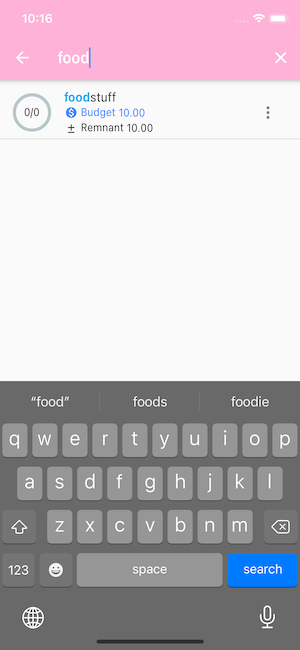
Click the search button at the top right to search based on the category letter.
Please use this function when you have more categories.


After selecting a category, you will move to the add item screen.
After transitioning, you can add an item by pressing the + button on the right side of the screen.


After checking your purchases, press the delete button in the upper right corner.
You can delete the checked items.

If you have not checked anything, you can delete all of them.


By selecting a list of items, you can enter the quantity and price.


The difference between the total price and the budget is automatically calculated based on the quantity and price you entered.


The shopping list screen does not calculate the quantity and price of items
You can use it as a simple shopping list.


After entering an item, you can easily move to a category by clicking the button on the folder icon at the top right.
Please make use of this function when you need to manage them in detail.


You can share your shopping list using the share button in the upper right corner.
In the case of this data, the

Shopping List

eggs
milk (i.e. cow's milk)

will automatically create a statement such as

If the list shows an egg as x3, then


Shopping List

Eggs x3
milk (i.e. cow's milk)

It will be

You may want to share your shopping with someone else to ask them to do it for you instead.

You can change your wallpaper in the gallery.
There are 30 different wallpapers to choose from.


The selected one is set as the screen background wallpaper.


There are three basic settings for the app: currency settings, initial screen, and theme colors.


You can change the currency to your preferred display.


You can set the screen to a category or shopping list to be displayed when the app is launched.


You can switch the app's theme color to pink, blue or green.


Please choose your favorite theme color.

If you have any comments or requests, please go to the settings screen of the app.
We will review and correct them as needed.

Please take care of Caho's cute shopping list.