2022年3月9日水曜日

mizutamaメモ帳 Android版の使い方


メモの追加は画面下にあるボタンからできます


カテゴリごとのメモ数、文字総数
メモの文字数がカウントされます。

メモにアイコンが付与できます。新規登録時はランダムに選択されます。
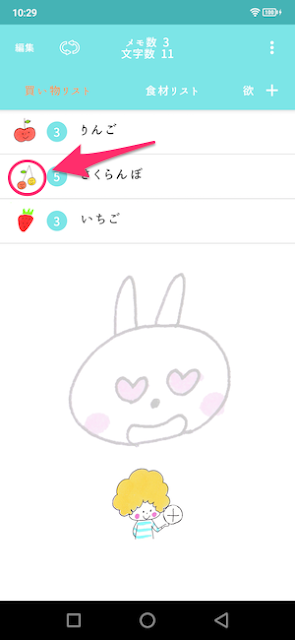

アイコンを選択することで、アイコンの変更ができます。


アイコンが複数ありますので、お好きなアイコンをお選びください。


メモを長押しするとメモの内容を読み上げます。


読み上げをリピートした場合、こちらのボタンをONにするとできます。


メモのカテゴリを編集、追加、削除したい場合はこちらから


右のボタンを押しながらスワイプすると並び替えできます。

カテゴリー追加ボタンで新しいカテゴリを追加できます。
リストを選択後にダイアログ表示され、カテゴリ名の編集、カテゴリの削除ができます。


画面右上のメニュボタンを押すとメニューが表示されます。
メモ検索選択でメモの検索画面が表示されます。


検索した文字にヒットすると上記のように表示されます。
リストをタップすれば、メモの編集画面が開きます。


画面左上の編集ボタンを押すと、上記ようなカテゴリ内のメモの編集が可能です。
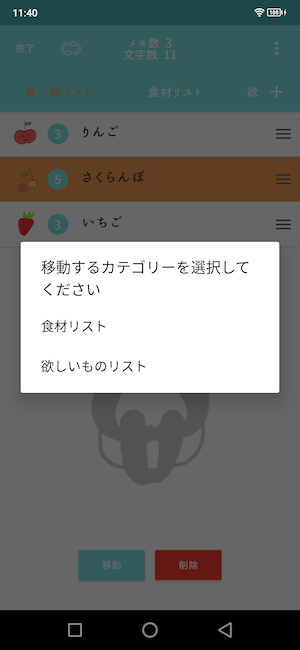

選択したメモの移動、削除できます。


メニュー表示後、設定を選択すると選択画面が表示されます。


設定画面で壁紙表示の変更ができます。


初期値はランダム表示になっています。
壁紙を固定にしたい場合、壁紙をタップするとできます。


記号入力を使用するをオンにすると記号入力がしやすいように
画面の表示が変わります。


記号入力を短縮したい場合にご活用ください。


Googleのサーバーにデータをバックアップすることが可能です。


バックアップした状態にデータを復元できます。

新しい端末に同じGoogleあを使用した場合
新しい端末へのデータ移行することもできます。


削除したメモを表示することもできます。


メモをタップすることで復元することができます。


ご意見・ご要望がありましたら、アプリの設定画面からお願いします。
随時検討して、修正致します。

mizutama メモ帳をよろしくお願い致します。

2022年2月11日金曜日

歩数計Stepy Ver 1.4.1の新機能

 ダークモードの切り替えがアプリ内の設定で、できるようになりました。


タップルすると、端末の設定通り、ダーク、ライトの選択肢が表示されます。


お好みの設定を選択後、保存で反映されます。


引き続き、歩数計Stepyをよろしくお願い致します。


2022年1月24日月曜日

カテゴリメモ帳iOS版 Ver1.8.8の機能

 メモが自動保存できるようになりました。


設定画面で自動保存のON,OFFを切り替えられます。


新規作成時はキャンセル、編集時は戻るボタンを押すと自動でデータが保存されます。


画面を閉じるときに警告を表示する設定がありますが、
自動保存される場合は表示されなくなります。


引き続き、カテゴリメモ帳をよろしくお願い致します。


2022年1月10日月曜日

カテゴリメモ帳Android版 ver1.4.5の新機能

3点の機能追加を行いました。

  • メモの並び替え機能追加
  • カテゴリメニューから編集画面への遷移
  • 削除履歴の全削除の追加

設定で更新日順にするをOFFにすると並び替えができるようになりました。


左上の編集ボタンを押して編集状態にすると並び替えが可能になります。


ドラックするようにスワイプすると並び替えできます。


カテゴリの右側のボタンから編集画面へ遷移できるようになりました。


ボタンを押すことで編集画面へ遷移できます。
追加、削除、最大文字数の設定が可能です。


削除履歴で全ての履歴を削除できるようになりました。


一度削除すると、復元はできなくなります。
気になる方はバックアップをされてから、削除をお願い致します。


引き続き、カテゴリメモ帳をよろしくお願いいたします。

2021年12月9日木曜日

カテゴリメモ帳iOS版 Ver1.8.3の機能

3点の修正を行いました。
  • カテゴリ編集画面への遷移
  • 削除履歴の削除追加
  • UIデザインの調整

画面右上からカテゴリ編集へ遷移できるようになりました。


よりカテゴリ編集がスムーズにできるようになったので
ご活用ください


設定画面から遷移できる削除履歴画面に
全て削除する機能が追加されました。


不要なデータは削除することでデータ容量を削減できます。


削除するとデータをバックアップしている場合を除き
復元できなくなります。

不安な場合はデータをバックアップしてから、削除してください。


引き続き、カテゴリメモ帳をよろしくお願い致します。


2021年11月14日日曜日

How to use mizutama Notepad for iOS


You can add notes by clicking the button at the bottom of the screen.


Number of memos per category, total number of characters
The number of characters in the memo will be counted.

The icon can be given to the memo. When you register a new memo, it will be selected randomly.


By selecting an icon, you can change the icon.


There are several icons available, so please choose the one you like.


Press and hold the memo to read the contents of the memo.


If you want to repeat the reading, you can do so by turning on this button.


If you want to edit, add, or delete a category of notes, click here.

Press the edit button in the upper right corner to enter edit mode as shown above.
Use the red button to delete, and hold the right button and swipe to reorder.

The Add Category button allows you to add a new category.


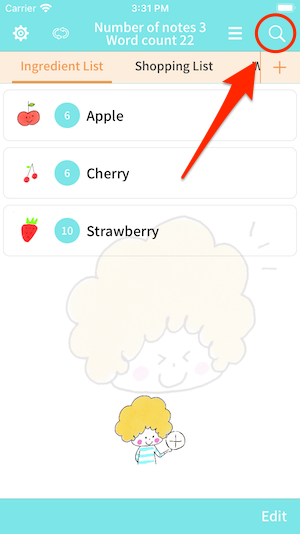
You can search for memos by pressing the search button at the top right of the screen.

When you get a hit on the searched text, it will be displayed as shown above.
Tap the list to open the edit screen of the memo.


You can edit the memos in the categories as shown above by pressing the edit button at the bottom right of the screen.


You can move or delete the selected memo.


Tap the button at the top left of the screen to open the settings screen.


You can change the wallpaper display in the settings screen.


The default setting is to display randomly.
If you want to fix the wallpaper, you can do so by tapping the wallpaper.


When "Use symbolic input" is checked, the screen will change to make it easier to input symbols.
The screen display will change to facilitate symbol input.


Please use this function when you want to shorten symbol input.


You can back up your data to iCloud.

You can restore your data to the state you backed up.

If you use the same AppleID for a new device
You can also transfer your data to the new device.


You can also view the deleted memos.


You can restore it by tapping on the note.


If you have any suggestions or requests, please use the app's settings screen.
We will review and fix them as needed.

We look forward to working with you on mizutama Notepad.